
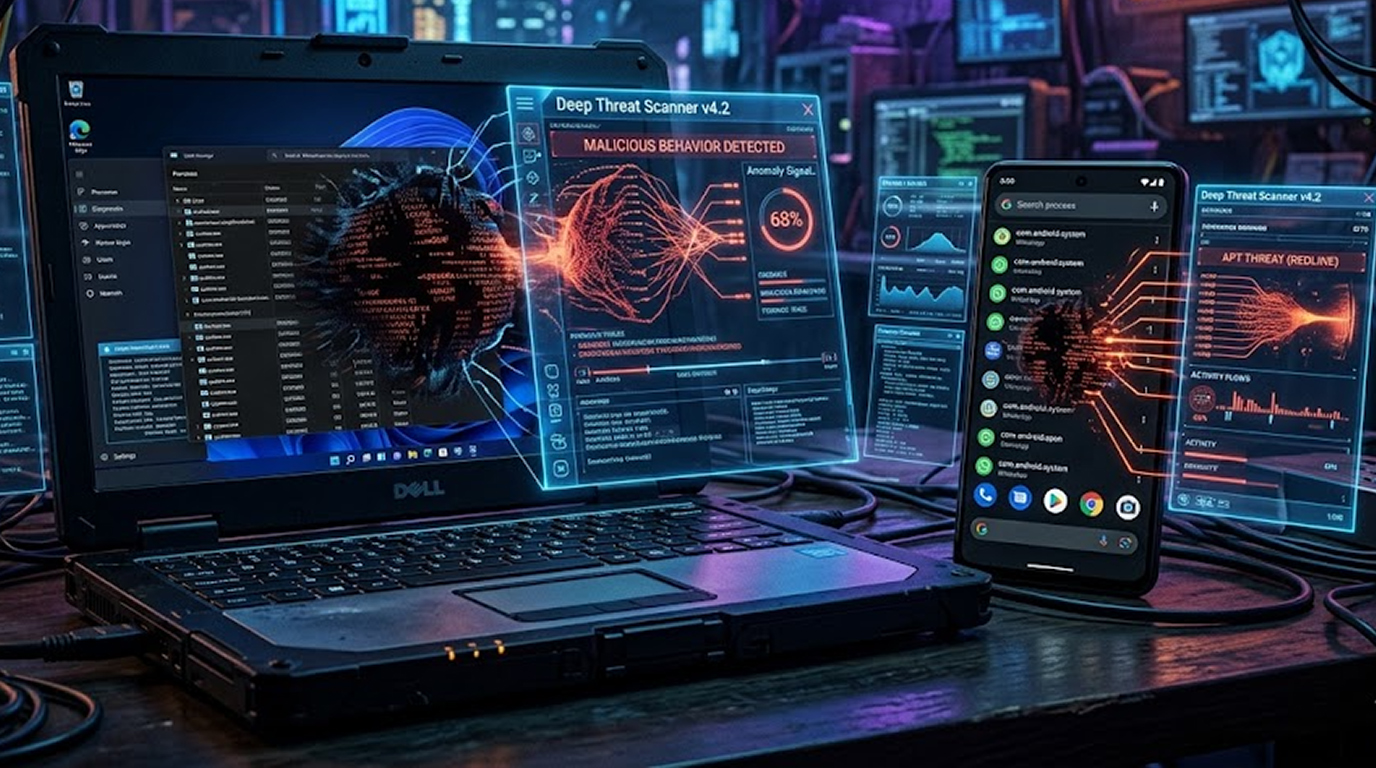
Local AI malware represents a major shift in 2026. Instead of sending everything to a remote C2 server, these threats embed small on-device language models (like Phi-3-mini, Gemma-2B, or quantized Llama variants) to analyze data, make decisions, and generate payloads locally. This makes them much stealthier because they produce far less network traffic.
Here’s a practical, no-nonsense guide to spotting them on both Android and Windows.
On Android
Key Indicators
1. There has been a huge increase of large model files (GGUF, ONNX, .tflite, bin files) being added to application data folders.
2. Applications that request Accessibility Service permission and also request High Storage and are making requests to model files.
3. Significant battery drain or CPU usage with the screen off (local inferences can be CPU-intense).
4. App captures clipboard and performs local processing immediately in response.
Ways to Detect Local Inference
1. Check for model files of suspicion.
# Using ADB (from a computer)
adb shell "find /data/data -name '*.gguf' -o -name '*.onnx' -o -name '*.bin' | head -20"
2. Review apps with dangerous permissions.
a) Settings > Application > Special app access > Accessibility.
b) Review all applications that you have no intention of giving Accessibility functionality to. (Look for "AI Assistant," "Offline Code Writer," "Trading Bot," or "Filter" apps.)
c) Monitor clipboard + local processing Use Malwarebytes or Bitdefender (free versions), they now flag suspicious combinations of clipboard access + local model loading.
d) Check battery and data usage Settings → Battery → Battery usage → look for apps with high background usage that have no obvious reason to run AI models.
Real Example: A fake “Offline AI Code Completer” app requests Accessibility, downloads a 400MB GGUF model, then uses it locally to decide which clipboard content (crypto addresses) to swap. The only visible sign is high CPU when the screen is off and a new large file in /data/data/com.fakeai.app/files/models/.
On Windows
Key Indicators
1. To locate newly downloaded small LLM files, you can search your %LocalAppData% or %AppData%.
You can find these by searching .gguf\onnx\bin files or Model folders in your temp directory.
2. Check for any process that has launched an AI Runtime such as ONNX Runtime, llama.cpp, MLX, DirectML.
3. There has been some indication of abnormal/suspicious use of either PowerShell or cmd.exe during local model inference.
4. Clipboard monitoring is combined with AI processing from the computer.
Practical Detection Steps
1. Hunt for model files
Get-ChildItem -Path C:\ -Recurse -Include *.gguf,*.onnx,*.bin -ErrorAction SilentlyContinue | Select-Object FullName, Length
2. Review Processing Activities in Real Time for An AI Runtime
Get-Process | Where-Object { $_.Path -like "*onnxruntime*" -or $_.Path -like "*llama*" }
3. Use Sysmon and Event Viewer to Check for Event ID 1, Creation of a Process; Use the Command-Line Arguments Searching for either Long Base64 Strings or Calls to a Local Model Path.
4. Track the Clipboard Utilization + Process Discovery Tools (i.e., Process Explorer or Autoruns; These Tools Will Display Which Processes are Accessing the Clipboard and When High CPU Usage Occurs From AI Runtimes).
Real Example: A malicious “local AI coding assistant” installer drops a 1.2 GB quantized model into %LocalAppData%\ai-assist\models\. It then uses the model to analyze clipboard content in real time and generate custom phishing overlays or credential-stealing scripts, all without obvious network calls until it decides to exfiltrate high-value items.
Quick Cross-Platform Habits
1. Be careful about any so-called "offline AI", "local code completion" or "AI trading assistant".
2. After you have installed a new tool, look for large unexpected files in the app's data directory.
3. Use known-good anti-virus or anti-malware software, such as Malwarebytes or Bitdefender on both platforms, and, in addition, Hypatia on Android.
4. Enable the blocking of suspicious applications with Windows Defender or any equivalent in Play Protect on Android.
Local AI malware is harder to detect because the “thinking” happens on your device. The best defense is prevention: treat any unsolicited “free offline AI tool” as potentially malicious until you verify it.
If you already suspect infection, start with the file-hunting commands above. Finding unexpected GGUF or ONNX files is often the first concrete sign.