Persistence is an essential phase of any kind of red team operation or malware. The payloads will need to survive reboot and user logoffs and other routine cleaning of the machine.
In 2026, scheduled tasks and Windows service are still two of the most effective and widely used techniques for persistence due to their native capability to run from Windows, to be installed with no third-party tools, and run under SYSTEM or high-integrity privileges.
Here are the practical, tested techniques, which malware developers and red teamers continue to actively use.
Scheduled Tasks (The Most Common Method in 2026)
Quick Security Checklist
- Scan your system or website
- Update all dependencies
- Change passwords
- Enable 2FA
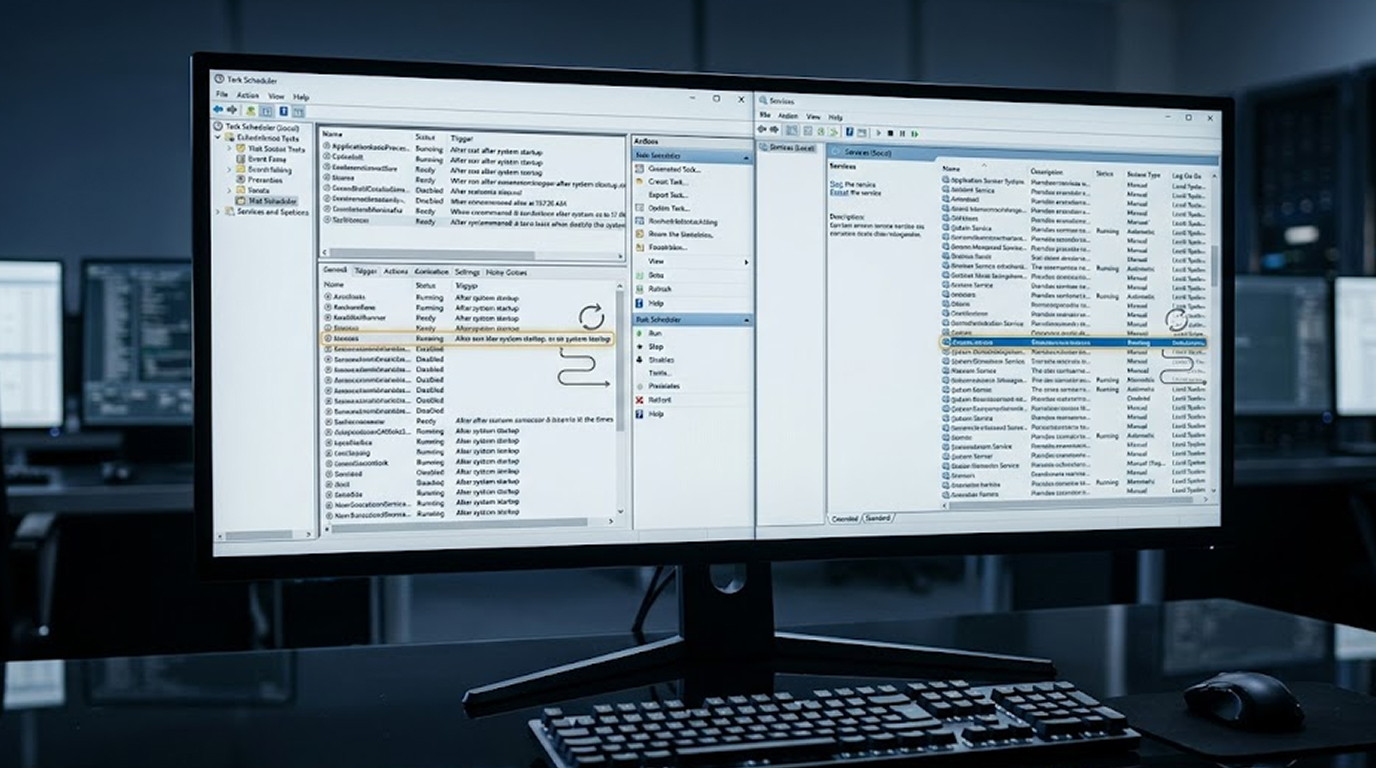
The most favored type of method for persistence is through scheduled tasks (Task Scheduler), they are considered to be stealth, flexible, and can run with a SYSTEM or high-integrity privilege level.
Common Techniques:
1. At Logon / At Startup Tasks
schtasks /create /tn "SystemUpdate" /tr "C:\Windows\Temp\update.exe" /sc onlogon /ru SYSTEM /f
Every time someone logs onto their account with SYSTEM privileges it executes.
2. Idle or Trigger-Based (System Events)
Idle/Trigger-Based tasks that are triggered by system events (such as when the screen locks, when the network connects, or when a particular process starts)
3. Hidden (No UI)
Modern malware can create tasks with the /f (force) option, and it can set those tasks to run hidden.
schtasks /create /tn "WindowsDefenderUpdate" /tr "powershell.exe -WindowStyle Hidden -File C:\Windows\Temp\payload.ps1" /sc onstart /ru SYSTEM
4. Registry-Backed
Some advanced versions of malware create tasks that are created and stored directly in the windows task scheduler registry keys located at:
HKLM\SOFTWARE\Microsoft\Windows NT\CurrentVersion\Schedule\TaskCache.
How does this persist across reboots?
Because all Task Scheduler/TASKS/ are stored in the Windows Task Scheduler database, ALL TASKS will automatically RESTART immediately after any reboot.
Windows Services (Highest Privilege Persistence)
Windows Services are a great way to run with SYSTEM Privilege and have the ability to Automatically Start on an OS bootup.
Common Techniques:
1. Standard Auto-Start Service
sc create "WindowsTelemetrySvc" binPath= "C:\Windows\System32\svchost.exe -k netsvcs" type= own start= auto
sc description "WindowsTelemetrySvc" "Windows Telemetry Service"
2. Service Hijacking : replacing/modifying (low quality) legitimate services (eg: fax, WSearch, or printer) with malware to run their payload.
3. Service DLL Hijacking : placing malware into the search path of a service for execution by a legitimate service.
4. Unquoted Service Path Exploitation : creating a service that has an unquoted path (with spaces in) so that a malicious binary can be executed by Windows instead (very common method that remains effective for many organizations)
Registry Locations (survive reboots):
HKLM\SYSTEM\CurrentControlSet\Services\
Advanced Hybrid Techniques
1. Create a Scheduled (Background) Task using a Service, which provides redundancy for the Scheduled (Background) Task.
2. Register a malicious COM object to be activated by a scheduled task.
3. Use an execution policy bypass of PowerShell’s Register-ScheduledTask; use the hidden window style option when doing this so it does not display on the screen.
4. Create non-removable WMI event filters and consumers that will trigger when the system boots or when certain events occur, providing a stealthy method of executing malicious software using this technique.
5. Use userinitmprlogonscript entries or “Run/RunOnce” keys to run malware as a fallback method.
Detection / Defense Techniques
Blue Team or Defenders
1. Monitor for the creation of scheduled tasks using Event ID: 4698 (Task Scheduler).
2. Review the Event Log for the creation or change of Service Control Manager instance (Event ID 7045).
3. When running schtasks.exe, sc.exe, or powershell.exe, search for hidden settings as often as possible.
4. From time to time, check both Service and Scheduled Tasks to see if there is any sign of suspicious activity by these accounts, such as an atypical account name, or being listed as a `SYSTEM` user.
5. Use Sysmon, Microsoft Defender for Endpoint or Velociraptor to determine if any of these techniques are being used.
Recommended Methods for Prevention
1. Limit the number of people that can create scheduled tasks/projects using Group Policy.
2. Enable Credential Guard and Device Guard if possible.
3. Monitor registry changes via HKLM\SOFTWARE\Microsoft\Windows NT\CurrentVersion\Schedule and service keys.
4. Impose application control (AppLocker or WDAC) to prevent unsigned executables from executing from Temp or other user-modifiable locations.
Key Takeaways
1. As of 2026, scheduled tasks and Windows services remain the two most reliable persistence mechanisms due to their native flexibility and ability to exist after a reboot.
2. Attackers prefer to use tasks that run as SYSTEM with hidden execution and good-sounding names.
3. The combination of scheduled tasks and services will provide redundancy, such that if one (either scheduled task or service) is removed, the other will continue to provide a mechanism for persistence.
4. Much of the ability to detect the use of scheduled tasks/services for persistence relies upon monitoring for each of Event IDs 4698 and 7045 and using behavioral analyses.
One way to help red teams understand persistence in the real world is to better inform blue teams about the various methods employed to achieve the same objective.