Your phone is a payment device.
Tap to pay.
Tap to share.
Tap to connect.
It is convenient. It is fast. It is also a security risk you rarely think about.
Near Field Communication (NFC) works automatically. It is always listening. And attackers have learned how to abuse that always-on behavior.
The simplest fix? Disable NFC when not in use as mitigation. One toggle. Zero cost. Significant protection.
Let me show you why this matters and exactly how to do it.
What Is NFC and Why Does It Need Mitigation?
NFC stands for Near Field Communication. It allows two devices to communicate when they are within a few centimeters of each other.
You use NFC every time you:
1. Tap your phone to pay at a register
2. Hold your phone near a transit gate
3. Share a file by tapping two phones together
4. Pair Bluetooth headphones with a tap
The problem is not NFC itself. The problem is that NFC is always active on most phones. Your payment credentials are broadcasting a short-range signal constantly.
Attackers exploit this with specialized hardware. They get close to you. They read your NFC data. They steal your payment information.
That is why security experts recommend you disable NFC when not in use as mitigation. You are not removing functionality. You are reducing your attack surface.
The Real Threats: How Attackers Abuse Active NFC
Before you learn the mitigation, understand the attacks.
Attack 1: Contactless Skimming
An attacker walks past you with a concealed NFC reader. The reader is in a backpack, a briefcase, or a modified smartphone.
Your phone is in your pocket. The attacker gets within 10 centimeters. That is close, but crowded elevators, subways, and lines make it possible.
The reader captures your payment token. The attacker replays that token to buy items. Your bank account loses money.
Attack 2: NFC Relay Attack
This is more sophisticated. Two attackers work together.
Attacker A stands near you with a relay device. Attacker B stands near a payment terminal. Attacker A reads your NFC signal and relays it to Attacker B in real time.
The payment terminal thinks your phone is right there. It approves the transaction. You are meters away. Your money is gone.
Attack 3: Data Harvesting
NFC can store more than payment data. Some phones expose:
1. Device identifiers
2. Account emails
3. Loyalty card numbers
4. Transit pass balances
An attacker harvests this data to build a profile on you. They sell it or use it for targeted phishing.
All of these attacks stop working when you disable NFC when not in use as mitigation.
How to Disable NFC on Android
Android phones vary by manufacturer. But the steps are similar across devices.
Method 1: Use the Quick Settings Tab
1. Pull down the Notification Shade
2. Find the icon for NFC (a sideways "N" or a touch to add logo should be somewhere on your device)
3. Tap the icon to turn NFC off (it will turn to gray)
4. Tap it again when you're ready to pay or share data to turn it back on.
Method 2: Use the Settings Menu
1. Open up your "Settings"
2. Tap "Connected Devices" or "Connections" (this will vary depending on your device).
3. Select "Connection Preferences," then "NFC and Payments"
4. Turn the switch for NFC to the off position.
Method 3: use the settings on a Samsung device
1. Open your "Settings"
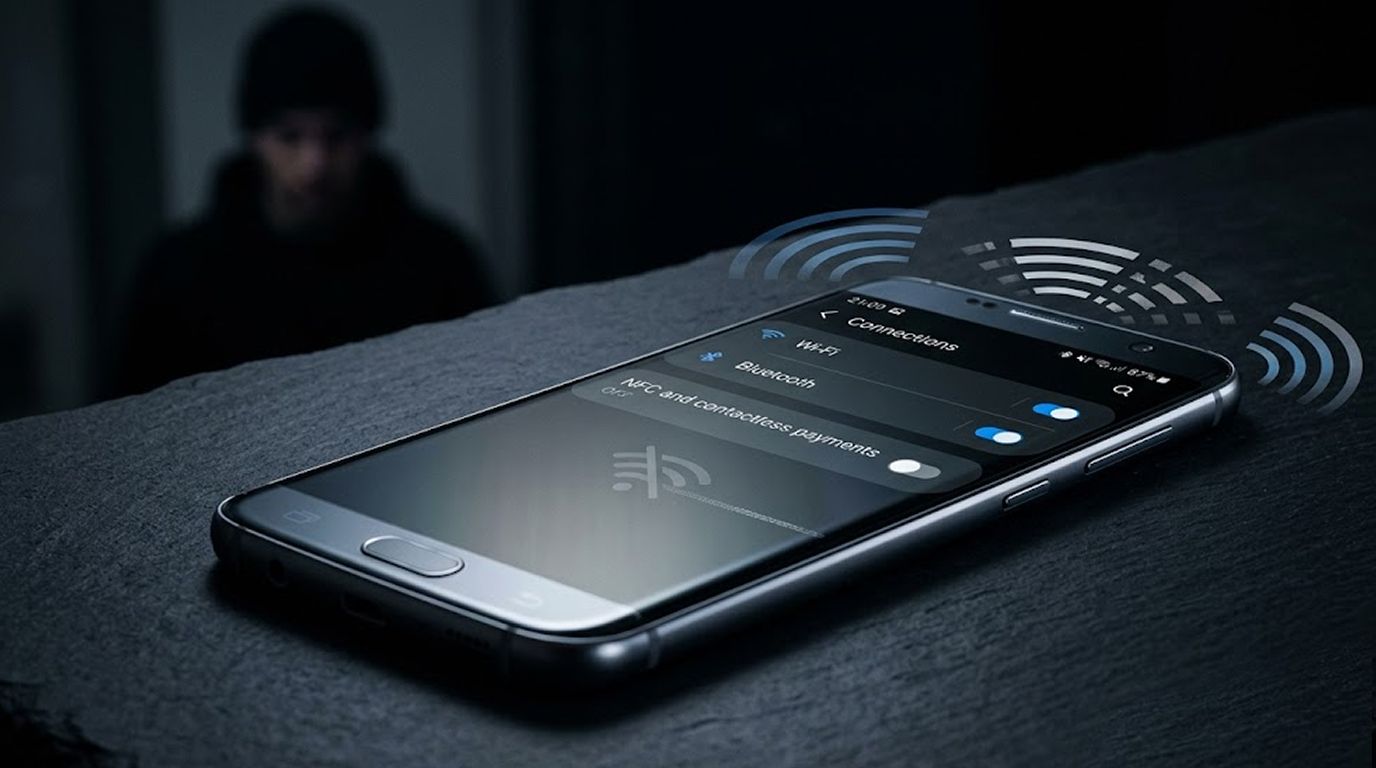
2. Tap "Connections"
3. Select the NFC and payment options
4. Turn the switch to the off position.
Method 4: Via Google Pixel Device, Turn Off/On NFC
1. Open Settings
2. Tap Connected Devices
3. Tap Connection Preferences
4. Tap NFC
5. Toggle Use NFC off
How to Disable NFC on iPhone
Apple limits NFC control compared to Android. But you still have options.
Method 1: Disable NFC For Payments (Partial)
1. Open Settings.
2. Press on Wallet & Apple Pay.
3. Turn Off (Toggle) Double-Click Side Button.
This will prevent you from accidentally making payments but will keep NFC partially active for background purposes.
Method 2: Disable NFC Entirely (Workaround)
Currently, there is not a way to fully disable NFC on Apple devices; however, you can use a workaround!
1. Open Settings.
2. Select General.
3. Press AirPlay & Handoff.
4. Turn Off (Toggle) all of the options related to sharing.
Now do the following:
1. Open Settings
2. Press Privacy & Security.
3. Press Location Services.
4. Go to System Services.
5. Turn Off (Toggle) NFC Scanning.
This will reduce your exposure to NFC but won’t remove it altogether.
Method 3: Use Airplane Mode
Airplane mode will disable all radios on your device, including NFC.
1. On the iPhone X or newer, swipe down from the upper right corner or older versions swipe up from the bottom.
2. Click the airplane icon.
3. NFC has been disabled on your phone.
Remember to turn Airplane mode back off when you need to connect to the internet!
The "Disable When Not In Use" Habit :
Security isn’t about doing something once, it’s about developing a habit.
Create the habit to disable NFC when not in use as mitigation by following this simple rule:
If you are not actively tapping, NFC should be off.
Here is a practical routine:
Morning: Turn NFC on only if you plan to pay with your phone. Pay. Then turn it off.
Transit: Turn NFC on before tapping the gate. Tap. Turn it off immediately after.
Shopping: Keep NFC off until you are at the register. Tap. Turn it off before putting your phone away.
Evening: NFC off. Always.
This adds three seconds to each transaction. It eliminates hours of potential exposure.
Who Needs This Mitigation Most?
You should disable NFC when not in use as mitigation if you fall into any of these categories:
High-Risk Users
1. Users of Public Transport : Whether on a subway or a bus, you will be close to people you don't know.
2. Attendees at Conventions : A convention has a lot of people in one place, with many different types of bad people all in one area.
3. Reporters/Activists : Targeted surveillance may consist of Non-Fictional Call (NFC) collecting data.
Moderately-Risk Users
1. Urban Residents : The higher the population density, the closer the potential attackers will be to them.
2. College Students : Crowded dorms, dining halls, and classrooms.
3. Office Employees : A lunch line or an elevator creates close contact.
Low-Risk Users
1. Rural Residents : Much fewer people than in urban areas to access you.
2. Work-from-home professionals : The physical proximity to strangers is very limited.
The habit of using your coffee cup/tumbler provides benefits for all users, even low-risk users; there is no end to the number of places where an attacker can be.
Additional Mitigations Beyond Disabling NFC
Disabling the NFC feature on your smartphone is your primary means of protection against the risks posed by this technology. To further increase your level of protection, you can apply these additional Mitigation Measures.
Use an RFID Blocking Wallet
RFID blocking wallets or sleeves prevent the NFC electromagnetic signal from being transmitted when the phone is near. The structure of the wallet functions as a Faraday cage – preventing signals from escaping or entering the enclosure.
Cost: $10-$30. Benefits: Continuous protection without needing to toggle the wallet on or off.
Keep Your Phone in Your Front Pocket
Back pockets are closer than your front pocket to the attacker and allow them to easily access your phone in crowded areas. By keeping your phone in the front pocket, you will provide a greater distance and difficulty for a concealed reader to access your phone.
Set a Payment Limit
Limit the Amount You Can Charge with Contactless Payment
If you use contactless payment, you will be required to provide a numeric PIN or biometric identifier once you proceed beyond a predetermined dollar amount.
Monitor Bank Statements Weekly
Look for small unauthorized transactions. Attackers test stolen NFC data with tiny purchases ($1–$5) before larger ones.
Use Virtual Payment Cards
Services such as Privacy.com or virtual payment cards from your bank can help to limit your exposure in the event of a token being compromised. You can also set purchase limits on each transaction.
NFC Security Common Myths
Myth 1: "NFC only has a 4cm distance to connect"
False: High power devices have the ability to connect at up to 30 to 50cm.
Modified readers with high powered antennas can be used to connect to the NFC reader.
Myth 2: "NFC can only be read when my device screen is unlocked"
Partially true: Most smartphones require you to unlock your screen before using NFC to make a payment; some OEMs and providers will allow you to use your device’s NFC to perform actions like tapping your transit card or identifying your device.
Myth 3: "NFC skimming is only theoretical"
False: Devices used to skim NFC payments have been collected during law enforcement operations in many countries
In 2023, the Secret Service of the United States released a warning of a spate of NFC related crimes.
Myth 4: "Disabling NFC breaks useful features"
Temporarily true. You toggle NFC on when you need it. Toggle it off after. The extra three seconds is worth the security.
Step-by-Step: Test If Your NFC Is Active
Before you start the mitigation habit, test your current exposure.
1. Download an NFC reading application (like NFC Tools) to your Android or iOS device.
2. Log onto the app when your phone is off.
3. Go to your phone with an additional NFC-enabled device (like an NFC payment card or another NFC-enabled smartphone).
4. See if your phone will report any contacts.
If your phone does report any contacts, this means that your phone was in contact with other NFC devices while locked.
Automated Solutions for Advanced Users
For Android users who want automation:
If you would like to automate this process and you are an advanced user of Android devices, you can do so using a program called ‘Tasker’.
Here’s how to do that:
1. Go into the Google Play Store and download/install Tasker.
2. Create a new Profile in Tasker. The profile is based on state, display (off).
3. Now create a new Task associated with the Profile: use the following logic - use the Net task for the first function = `NFC` and then set the task = off.
4. Now, repeat these steps to create a second profile; using the same method, but select the option for Display On instead of Display Off.
5. Afterward, repeat Step 3 for the second profile but use Set On and insert a five-second delay.
This setup will cause your NFC to turn-on only when your screen is on and automatically turn off when your screen goes dark.
Utilizing Bixby Routines (Samsung)
Using the included built-in 'Bixby Routines' application, you can achieve the same result with Samsung devices.
1. To find Bixby Routines, go into Settings > Advanced Features > Bixby Routines.
2. Set up Bixby Routines to create the following condition to enable NFC: open either Google Pay or Samsung Pay.
3. Set up Bixby Routines to create the following condition to disable NFC: close either Google Pay or Samsung Pay.
By utilizing this configuration, NFC will remain enabled only when your payment application is open.
Detection for Security Professionals
If you are responsible for organizational security, add NFC mitigation to your mobile policy.
Recommended Policy Language
NFC must be disabled by default on organization-issued mobile devices. Users may enable NFC only while engaged in an authorized transaction, and they must disable it immediately after the transaction. Where possible, NFC must be automatically disabled when the screen goes off.
Technical Controls for MDM
With some Mobile Device Management (MDM) solutions such as VMware Workspace ONE or Microsoft Intune, NFC can be automatically disabled upon enrollment, restrictions can be placed on users' ability to enable NFC, and compliance checks can be performed on users' devices for NFC status.
User Training Points
1. Teach employees how to disable NFC on their device.
2. Demonstrate a relay attack using two phones and a NFC payment terminal.
3. Create a sticker to place on employee badges that indicates "NFC Off".
Actionable Checklist
1. Check your device to see if your NFC is enabled (Android: Quick Settings; iPhone: Settings > Wallet).
2. Disable NFC using the instructions above.
3. Create a mental habit: NFC on only during the tap
4. Add NFC toggle to your Quick Settings (Android) or Accessibility Shortcut (iPhone)
5. Purchase an RFID-blocking wallet or sleeve
6. Set up automated disable if you use Android Tasker
7. Review your bank statements for small unauthorized charges
8. Share this guide with one other person
Conclusion
Disable NFC when not in use as mitigation is not paranoia. It is basic security hygiene.
You lock your front door. You do not leave your wallet on a park bench. You do not share your passwords. Turning off NFC is the same principle. You remove an attack surface when you are not using it.
The attacks are real. The mitigation is free. The habit takes three seconds.
Tap. Pay. Disable. Repeat.
Your money stays yours.
FAQ Section
Q1: Does disabling NFC affect my ability to use Apple Pay?
Yes. If you disable NFC entirely (using Airplane mode), Apple Pay will not work. Use the workaround steps above to reduce exposure without fully disabling. You can turn Airplane mode on/off for each transaction if needed.
Q2: Is it possible to pickpocket someone’s credit card info wirelessly using NFC?
Yes, this will be called "NFC skimming." Attackers have access to concealed readers that they can hide from their target and be able to read NFC payments within a few centimeters. So, if a transaction uses your payment token and does not require you to unlock your device, the amount could be very small or it could be for using your transit card.
Q3: Is there a way to tell if my phone's NFC feature is turned on or off?
If you're using an Android phone, check the Quick Settings for the NFC icon. If you're using an iPhone, head to the Settings app, go to Wallet & Apple Pay. If you see the default payment card there, it means NFC is turned on. Otherwise, use Airplane Mode for complete assurance.
Q4: Is disabling NFC enough to prevent all proximity attacks?
No. Disabling NFC stops NFC-based attacks. It does not stop Bluetooth skimming, QR code phishing, or cellular interception. Use multiple layers: disable NFC, use RFID-blocking wallets, keep your phone in a front pocket, and monitor bank statements.
Q5: What is the difference between NFC and RFID blocking?
NFC is a subset of RFID. RFID-blocking wallets block both NFC and other RFID frequencies (like those in hotel key cards and office badges). For smartphone protection, an RFID-blocking wallet works perfectly.