Fake WhatsApp verification pages are currently one of the fastest-growing ways people lose their accounts and once someone has your number linked to their device, they can read all your messages, send from your name, and scam your contacts in seconds. The good news is that these phishing pages almost always have clear red flags if you know what to look for.
Here’s a practical, step-by-step checklist you can use the next time you see a “verify” or “scan QR” prompt:
1. Never Scan a QR Code Sent in a Message (The #1 Rule)
Legitimate WhatsApp never asks you to scan a QR code that arrives via message, email, or any link. The real WhatsApp Web QR code only appears when you yourself open web.whatsapp.com on a computer and click “Link a Device”.
Red flag examples you’ll see in scams:
1. “Someone is trying to log in to your account , scan this to secure it”
2. “Your friend sent you a photo/video , scan to view”
3. “New group invite , scan to join”
4. “WhatsApp update required , scan to continue”
If the QR code came to you unsolicited → close the tab immediately. Do not scan.
2. Check the Actual Website Address (URL)
Real WhatsApp Web is only ever at: https://web.whatsapp.com
That’s it. No other domain is official.
Common fake URL patterns (block these on sight):
1. whatsapp-web[.]com
2. web-whatsapp[.]net / [.]cc / [.]top / [.]icu
3. verify-whatsapp[.]com
4. whatsapp-login[.]online
5. chat-whatsapp[.]link
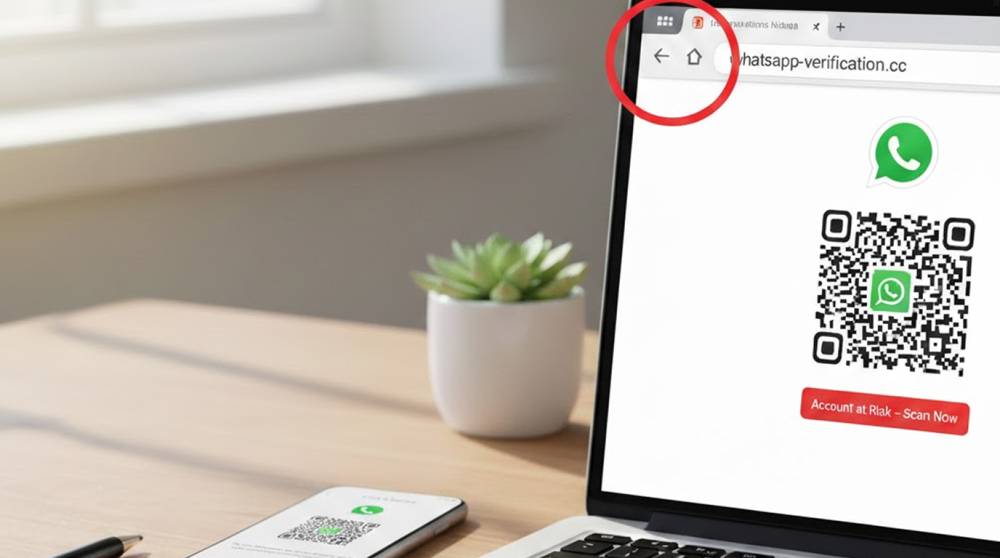
6. whatsapp-verification[.]pages.dev (Cloudflare pages are heavily abused)
Even though a site may seem genuine, the domain may not be the same, which means it is probably a counterfeit site. To verify authenticity, you should hover (or long-press if you are on mobile) over any link or QR code to determine its true source before scanning/clicking.
3. Examine the Page Behavior and Details
The legitimate WhatsApp Web QR page has a very simple appearance:
a) A white background with a green WhatsApp logo.
b) Text that says: "To use WhatsApp on your computer..." or "Set up a new device"
c) No urgency-related phrases (For example, "Your account is at risk!").
d) On the very first screen, there is no option to enter your phone number (only a QR Code).
e) There is no "Enter Verification Code" hyperlink unless you've started the linking process first.
How to Identify a Fake WhatsApp QR Code:
1. If asked for your number it is an indication that it is not a real QR web page, as no legitimate QR web page will ever ask for your number first.
2. Any warning about your account being closed "in x minutes"; (for example: "Your account will close in 5 minutes").
3. The appearance of the web page may be different than a real QR web page. Please note the following differences; (example: size/type of fonts, logo size or difference, shading differences, etc.).
4. Extra buttons are always signs (example: "Verify Now", "Secure My Account", etc.) that point to something being wrong.
5. Documenting the amount of time left before your account is no longer active may be found on this page (example: "Last Chance, complete this process in x minutes").
4. Confirm the QR Code Itself (Via Quick Visual Inspection)
a) A legitimate WhatsApp QR Code will always be black and white, will contain a pure grid pattern, without any colors or logos within the code.
b) A fake QR Code may have small logos, have colored dots (within the grid pattern), or be blurred or pixelated in appearance.
5. What to Do If You Already Scanned or Entered a Code
a) Immediately open WhatsApp on your phone → Settings → Linked Devices
b) Look for any unfamiliar browser/computer name → Log out all sessions (especially unknown ones)
c) If you see one you don’t recognize → Log out from all devices, then change your WhatsApp two-step verification PIN (Settings → Account → Two-step verification)
d) Warn your contacts: “My account was compromised – ignore any strange messages from me today”
e) If money or sensitive info was requested → contact your bank/exchange immediately
Takeaways (Save This)
1. If you received a QR code or link in a message. Do not scan / click on it.
2. Check URL is exact match of: https://web.whatsapp.com. If not, it is fake.
3. If you were asked for your phone number or a code before seeing QR code, it is also fake.
4. Any urgent/red warnings or countdowns? → fake
5. Page looks slightly off (fonts, spacing, logo)? → fake
One wrong scan or code entry = full account takeover. One quick URL check or “no thanks” = your account stays yours.
Stay sharp, these pages are getting more convincing every month, but the URL and the “who sent this QR” question still catch almost all of them.