If you’ve recently installed a “free offline AI tool,” “local AI code completer,” “smart AI trading assistant,” or any similar-sounding program from Telegram, Discord, or a random website, there’s a very high chance your Windows machine is now infected.
This is currently the most common infection path for local AI malware on Windows in 2026. The pattern is so consistent that security teams have a shorthand for it: “unknown large files after a free AI tool” = almost certainly malicious.
Why This Path Is So Effective on Windows
Attackers have refined a simple, highly convincing delivery method:
1. They create an installer that looks and feels like a legitimate AI productivity tool.
2. The installer is promoted aggressively in developer communities, trading groups, and “cracked software” channels.
3. Once run, it drops a small core + one or more local AI models (usually GGUF or ONNX format) and sets up persistence.
4. The malware then uses the on-device model to analyze your activity locally (clipboard, open windows, documents) before deciding what to steal or do next.
Because most of the “thinking” happens locally, there is very little obvious network traffic, making traditional antivirus and network monitoring much less effective.
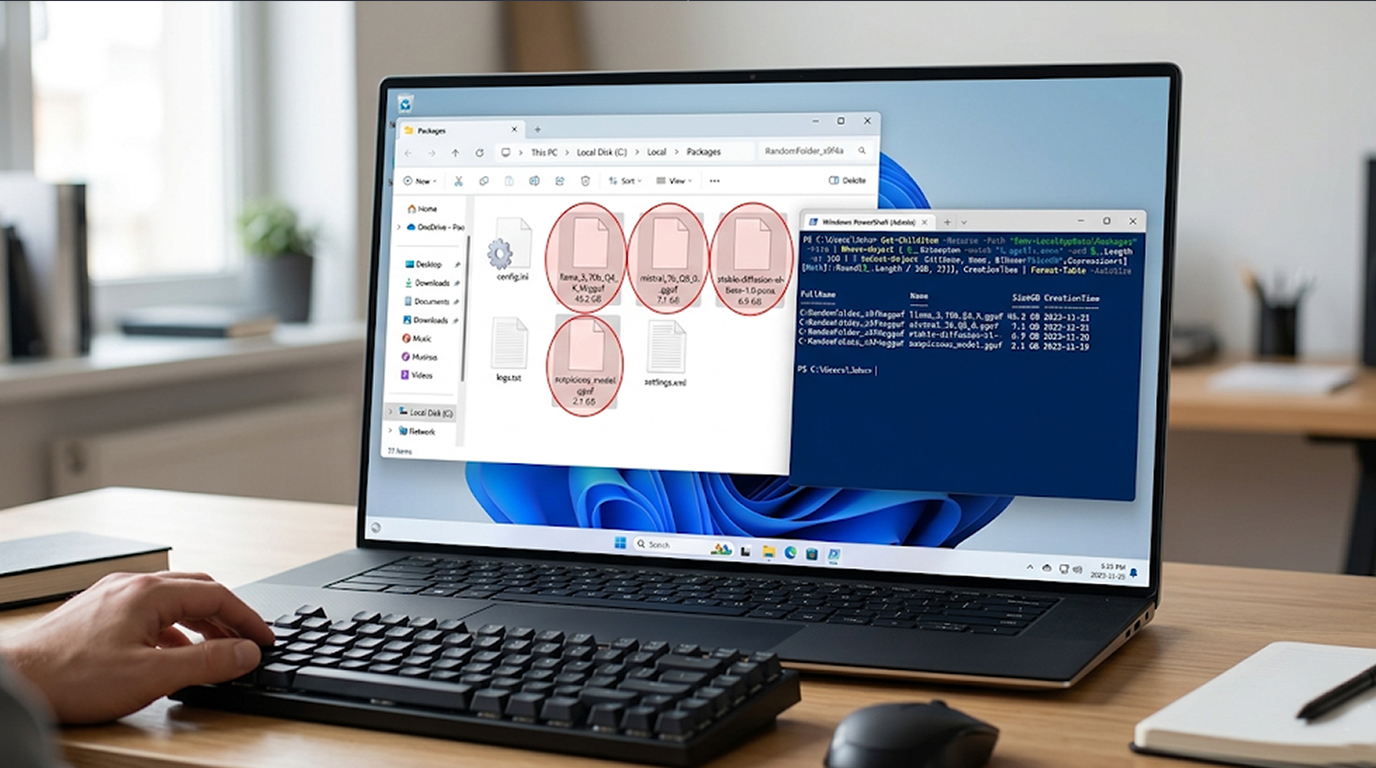
Where Can You Find "Hidden Files" In Windows?
After installing "questionable" free AI apps, here is a list of places that could contain hidden files:
1. Primary hiding locations.
a) %LocalAppData%\<app-name>\models\ → look for large .gguf, .onnx, .bin, or .safetensors files
b) %AppData%\<app-name>\ → hidden folders containing model files or encrypted payloads
c %Temp%\<random-folder>\ → temporary folders with model files that weren’t cleaned up
d) C:\Users\<yourusername>\.cache\ or C:\ProgramData\<app-name>\
2. Persistence Locations to Check
a) Startup folder: C:\Users\<yourusername>\AppData\Roaming\Microsoft\Windows\Start Menu\Programs\Startup
b) Registry Run keys: HKCU\Software\Microsoft\Windows\CurrentVersion\Run
c) Task Scheduler (you need to be especially cautious of anything running PowerShell or that is run in the background).
Real-World Examples
1. “Offline AI Code Completer” Dropped a 1.1 GB quantized Llama model into %LocalAppData%\ai-coder\models\. The model was utilized locally for the purpose of scanning clipboards for cryptocurrency addresses and generating payloads for swapping purposes.
2. "Local AI Trading Assistant" has installed a 650 MB Gemma-2B model in %AppData%\trading-ai\cache to monitor the open trading platforms and create fake profit overlays to entice users into sending additional funds.
3. “Smart AI Image Editor” Placed multiple small ONNX models in %Temp%\ai-editor-v2\. Used the models to analyze screenshots and inject phishing forms when banking sites were detected.
In every case, victims only noticed something wrong when they saw unusually high disk usage, unexpected large files, or sudden high CPU usage when the AI model was running inference.
Practical Detection & Cleanup Steps (Do This Now)
1. Search suspicious model files in Windows PowerShell as administrator and run this command:
Get-ChildItem -Path C:\ -Recurse -Include *.gguf,*.onnx,*.bin,*.safetensors -ErrorAction SilentlyContinue |
Select-Object FullName, Length | Sort-Object Length -Descending
2. Examine Processes in Real-time
Get-Process | Where-Object { $_.Path -like "*onnxruntime*" -or $_.Path -like "*llama*" -or $_.Path -like "*ai*" }
3. Examine Startup Items in the Task Manager – the Startup Tab or run this command:
Get-CimInstance Win32_StartupCommand | Select-Object Command, Location
4. Clean-up Immediately
a) Remove the suspicious ‘AI Tool’ via Settings > Apps
b) Delete Any Large .gguf, .onnx or .bin files (to delete multiple files, hold the Ctrl button while clicking on the file)
c) Perform FULL scan with Malwarebytes and Windows Defender
d) Remove any suspicious scheduled tasks or startup entries
e) Change Passwords for any accounts where you used the tool
Prevention Rule for Windows Users
Do not download a “free offline AI tool” from Telegram, Discord or any random website.If it promises powerful local AI capabilities and was not downloaded from the official GitHub of a well-known project, treat it as malicious.
The “Free AI Tool” infection path is currently the fastest way local AI malware reaches Windows users. Finding and removing those unknown model files early is often the difference between a minor scare and a serious compromise.
Stay safe, when something sounds too good to be true, especially “free offline AI,” it almost always is.