You wanted to recover a forgotten password. You searched online, found a "free password cracker," and downloaded it. The software did not work, maybe it crashed, maybe it showed an error, maybe nothing happened at all.
You forgot about it.
But now your computer is slow. The fans are loud. The battery dies in two hours instead of six. Games stutter. Videos buffer.
Did you get hacked?
The short answer is yes, but probably not in the way you think. You almost certainly did not install a tool that cracks passwords. You installed malware. Most likely, your computer is now secretly mining cryptocurrency for a stranger.
Let me explain exactly what happened, how to check, and how to clean your system.
The Hard Truth About "Free Password Crackers"
Here is something you need to know. Legitimate password recovery tools exist. They work on your own files, they are not free, and they do not come from random download sites.
All the "Free Password Crackers" you see on random sites are secretly viruses. Each one is made by hackers that know people will be looking for how to crack their passwords.
So what they do is build fake programs and stuff them full of viruses to hope someone downloads them. You won't be the first person to download one of these programs. And you certainly won't be the last.
The people who created that file are not hackers who want to steal your banking credentials. They are not trying to watch you through your camera. They want something simpler. They want to use your computer to make money.
What you downloaded actually included:
1. Malware can exploit the CPU of a computer to mine for cryptocurrency.
2. The type of malware used for collecting credentials and browsing history.
3. The malware that can turn your machine into a part of a network of computers for launching attacks on other computers (i.e., "botnet" ).
4. The malware that provides an attacker with remote access to your computer and the ability to control it.
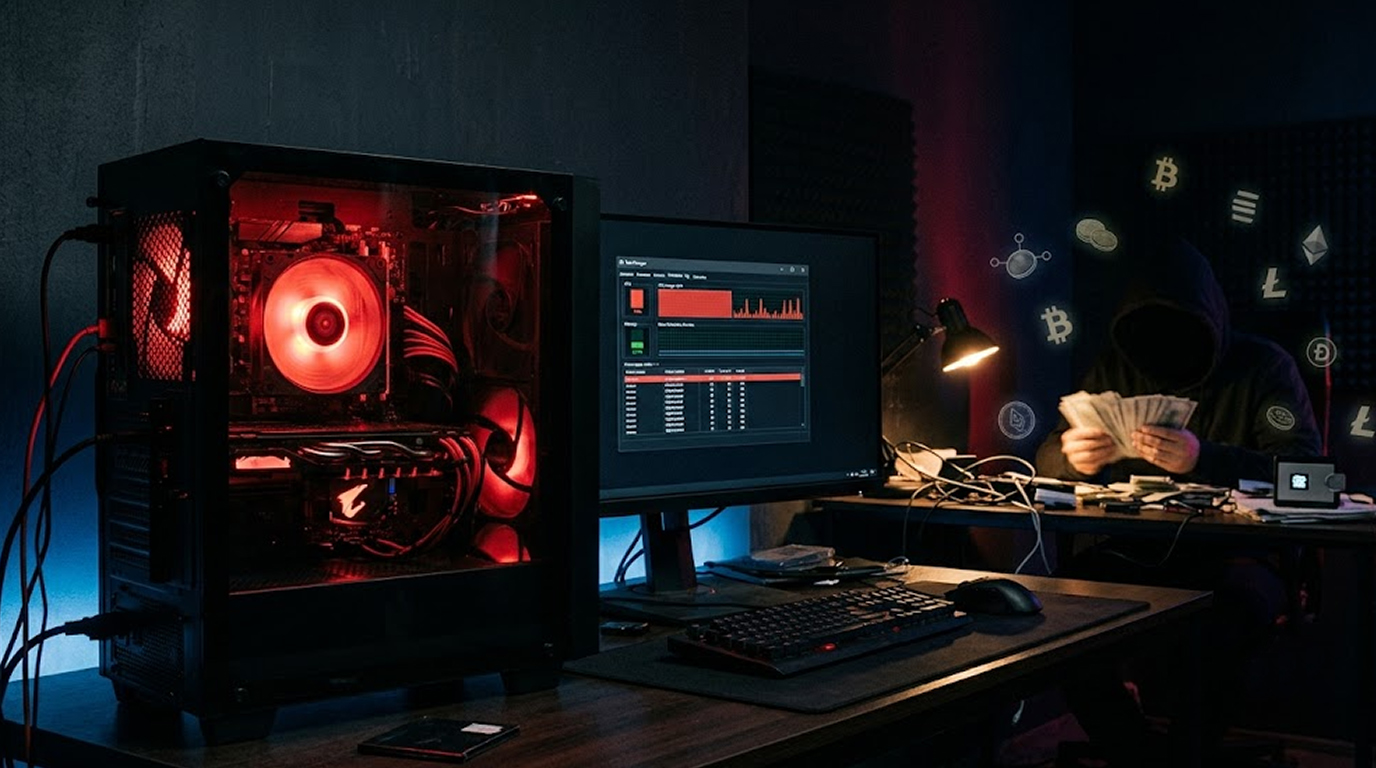
For this reason, most of the time you have downloaded a cryptocurrency miner. If your computer is running slowly, your fans are running loudly and your CPU and/or GPU are running at near 100% all of the time, then you have likely downloaded an illegal miner onto your computer.
Defining Miner and Understanding Why Miner Has Been Installed On Your Computer
Cryptocurrency-mining (i.e., the validation of transactions through the solving of complex maths problems) is the practice by which cryptocurrency-miners collect crypto in small increments as a reward for solving those mathematical problems.
Mining requires a tremendous amount of computing power, and therefore, a large expense is incurred from electricity and hardware to perform full-scale mining via the above process.
Instead of paying for their own computers and electricity, criminals put mining software on other people's computers. Your computer does the work. They get the money. You pay the electricity bill.
What cryptominer malware does:
1. Continually running, no matter whether you utilize the computer or not.
2. Constantly utilizing 80% to 100% of the CPU or GPU.
3. Use maximum fan speed.
4. Completely depletes the battery in just a few hours.
5. Slows down all other applications.
Why it is so common:
Mining malware is easy to write and hard to detect. The miner looks like a legitimate background process. It does not steal your data or break your files. It just steals your processing power.
Many victims never realize their computer is mining crypto. They just think their computer is old or slow.
How to Check If Your PC Is Mining Crypto
You can check right now. It takes two minutes.
Step 1: Open Task Manager
Press Ctrl + Shift + Esc on your keyboard. If that does not work, press Ctrl + Alt + Delete and select Task Manager.
Step 2: Monitor CPU and GPU activity
Choose “Performance”. View the CPU usage. If you’re not running any applications and the CPU usage is still about 100%, this could indicate a problem. Also check GPU activity. If it’s high even when you’re not doing anything this too may indicate a problem.
Step 3: Review the Processes
Choose “Processes”. Do you see anything at the top of the list beside the normal processes? Are there any unusual process names that seem random like sddwm.exe or winhelper64.exe? Are there any processes that have unusually large amounts of CPU resource usage associated with them?
Step 4: Review Hidden Processes
Many miners operate under cover (hidden). To identify all existing processes you need to run task manager with elevated privileges. Open Task Manager as an administrator, then select the “Details” tab and examine the list closely for anything suspicious.
Step 5: Use a program to monitor your GPU usage
The two best options to check your GPU usage are to download either GPU-Z or MSI Afterburner. These applications will show you how much of your GPU is currently being used at any given moment, thus telling you if you have a miner on your computer as follows:
Normal:
1. CPU Usage IDLE: 1% to 10%.
2. GPU Usage IDLE: 0% to 5%.
3. Fans are either SILENT or Off.
Miner:
1. CPU Usage IDLE: 80% to 100%.
2. GPU Usage IDLE: 80% to 100%.
3. Fans are LOUD and ALWAYS running.
4. Your laptop is HOT to the touch.
Other Signs of Infection
Even if you do not have a miner, your computer may be infected with other malware.
Sign 1: Your browser is slow or has pop-ups.
Adware or browser hijackers are common in fake software downloads. They add extensions, change your search engine, and flood you with ads.
Sign 2: Your passwords do not work.
If you used your computer to log into any accounts after downloading the cracker, assume those passwords are stolen. Infostealer malware collects saved passwords from your browser and sends them to the attacker.
Sign 3: Your friends received strange messages from you.
Some malware steals your session cookies and uses your account to spread to your contacts.
Sign 4: New software appears on your computer.
Check your installed programs list. Look for anything you did not install. Pay attention to remote access tools like TeamViewer or AnyDesk.
Sign 5: Your security software has stopped working.
Many forms of malware will disable your current security software (like Windows Defender) in order to protect themselves.
Sign 6: Unusual activity on your computer's Network.
Using Task Manager, check the network data for the applications running on your computer. Is there an application in the network category that is often sending/receiving data whether you are using your computer to browse?
What to Do Right Now
Do not panic. You can clean your system. Follow these steps in order:
Step 1: Disconnect from Internet.
This can be accomplished by disabling Wi-Fi or unplugging Ethernet cable. Malicious software requires a connection in order to communicate back to their command server.
If the software is a miner, it will not be able to take the cryptocurrency it has mined, and if it’s an infostealer, then your personal data cannot be uploaded to the command server.
Step 2: Perform a complete antivirus scan.
Windows Defender comes pre-installed on Windows; it is an adequate virus scanner.
Here is how you can conduct a complete virus scan:
1. To start scanning your computer for viruses, first go to the Start Menu and find the box where you would type “windows security,” then click Enter on your keyboard.
2. When you are directed to the Windows Security page, check on the left side scroll of the page, and click on “Virus & threat protection.”
3. After you have opened the Virus & threat protection window, you will see an option named “Scan options.” Click this to open.
4. In Scan Options, choose "Full Scan".
5. After you choose "Full Scan", click on "Scan Now".
This will take 30 minutes to several hours depending on your drive size.
If Windows Defender finds anything, let it remove it. Restart your computer when it finishes.
Step 3: Run a Second Opinion Scan
No antivirus catches everything. Run a second scan with a different tool.
Download and run Malwarebytes Free:
1. Use a non-infected computer to download Malwarebytes from malwarebytes.com to a USB drive.
2. Use your USB drive to download Malwarebytes (Free version) from the website to the USB drive and take it back to your infected PC.
3. After you installed and ran Malwarebytes on your PC, you need to run a full scan on your PC to ensure that the miner and malware were found because malwarebytes has been developed specifically to find miners and other malware that traditional anti-virus programs do not find.
Step 4: Using Process Explorer to Search for Cryptominers
If you have rebooted your computer and performed a complete Malwarebytes scan, but the CPU usage is still excessive, you can investigate miners in greater depth with Process Explorer.
The very first step in using Process Explorer is to download the Microsoft Process Explorer tool.
To download Microsoft Process Explorer, have a clean computer search for Process Explorer and either download it directly onto the infected computer or onto the clean computer so you can transfer it over via removable media (USB drive, etc).
Next, you can run Process Explorer on the infected computer.
Process Explorer will display all of the currently active processes (including the parents of each of those processes). Miners often act like a child of one of the legitimate Windows processes. You can easily identify miners by looking for odd names or processes being run from the Temp folder.
Step 5: Determine Your Startup Programs
Once installed, malware often inserts itself into the list of approved startup programs, which means that it boots itself on every boot of your computer.
You can check the list of startup programs as follows:
1. Press Ctrl + Shift + Esc to open the Task Manager
2. Select the Startup tab
3. Look for any program that appears to belong to you and has an odd name, as well as any program that has an Unknown publisher.
For those programs that fall into the above category, right click on them and select Disable.
Step 6: Investigate the Scheduled Tasks
Crypto-miners can also set up their own scheduling of tasks so they can start new processes whenever the existing processes stop.
To find out if there are any scheduled tasks that have been added to your system:
1. To run task scheduler, you can open "Run" with Windows + R key combination and run "taskschd.msc" command.
2. While reviewing the task scheduler library section, look for bizarre task names. You can also use publisher names to judge trustworthiness of the tasks you find.
3. Any repulsive task can be disabled by selecting it (right click) and then selecting "Disable" from the menu.
Step 7: View Temporary Folders
Crypto mining software can reside in temp folders without you being aware that they are running on your system.
Here is how to find temp folders on your PC.
1. To run the "Run" dialog, press the Windows + R key simultaneously; then type "%TEMP%" into the text box that says "type here"; and finally hit the Enter key.
2. Go through all the files contained in the %TEMP% folder looking for oddball files or files that are executable. If you find anything that appears to be oddball or executable, you should delete it because everything found in %TEMP% is safe for you to delete.
And check C:\Windows\Temp and C:\Users\YourName\AppData\Local\Temp.
Step 8: Changing Your Passwords
If you downloaded something that contained an infostealer, it’s very likely that the passwords saved on your computer have been compromised. You must assume that they have been stolen.
To remedy this, follow these steps:
1. Change all of your passwords as soon as possible (preferably from a new device).
2. Set up two-factor authentication for any account that offers it.
3. Don't reuse any passwords across multiple accounts.
Step 9: Completely Restore Your PC Through Reinstalling the Operating System
If after following Steps 1-8 you have tried everything possible to repair the computer or you still see malware on your machine then restoring to factory defaults by reinstalling (reformatting) your Computer’s operating system is the last solution.
Follow these steps to install your operating system.
1. Re-format the hard disk prior to backing up any data other than just your personal file types (photos, documents, videos) as you will not want to re-install non-personal data such as applications or your operating system files.
2. Use the Windows facility called "Reset this PC":
a. Go into Settings then click on "Update & Security" then click on the "Recovery" tab, then click on "Reset this PC"
3. When prompted select to "Remove Everything" then select "Download from Cloud" if that option is available.
4. After the operating system reset has completed you can then reinstall all of your applications program files from the original source of each program.
By completing the above steps you will have successfully removed any malware from your system.
Why You Should Never Download "Password Crackers"
Let me be direct. There is no legitimate free password cracker that works the way you think. Here is why.
Password cracking is hard.
Cracking a modern password can take years, even with powerful computers. No free download is going to crack your friend's Facebook password in five minutes.
Real password recovery tools are for your own files.
Legitimate tools like Ophcrack or John the Ripper are used by security professionals and forensic investigators. They require technical knowledge to run. They are not one-click downloads from YouTube.
Any "password cracker" you find on a free download site is malware.
Not maybe. Not sometimes. Always.
Attackers know that people search for these tools. They rank high on Google, they have fake YouTube tutorials, and they have fake comments pretending the tool works. The tool does not crack passwords. It installs malware on your computer.
Do not download them. Do not run them. If you already did, follow the cleanup steps above.
Preventing This from Happening Again
You can protect yourself from future infections with these habits.
Never download software from videos.
They are full of tutorials that end with a link to a "free download" in the description. Those links go to malware.
Only download software from official websites.
If you need a password recovery tool, go to the developer's official site. Do not trust third-party download sites like Softonic, CNET Download, or similar. They bundle adware and malware.
Use a standard user account.
Do not use an administrator account for daily activities. Create a standard user account for browsing, email, and downloads. If malware runs, it cannot make system changes without your admin password.
Keep Windows Defender enabled.
Do not turn off real-time protection. Do not add exceptions for "crack" folders.
Be suspicious of any "too good to be true" software.
Free password cracker. Free Netflix account generator. Free Spotify premium.
All of these are malware delivery vehicles. Legitimate software costs money or is supported by ads. Random free tools from the internet are not your friend.
Scan every downloaded file before opening.
Right-click the file, select "Scan with Microsoft Defender," before you run it.
The Bottom Line
You downloaded a free password cracker. It did not crack any passwords. It installed malware on your computer, most likely a cryptominer that is using your CPU and GPU to mine cryptocurrency for a stranger.
Your computer is slow because someone else is making money from your electricity bill.
The good news is that you can clean it. Run Windows Defender full scan. Run Malwarebytes. Check for high CPU usage in Task Manager. Change your passwords. If all else fails, reinstall Windows.
And never, ever download a "password cracker" again. They are all malware. There is no exception.
Your computer will be fine. Learn from this, and move on.
FAQ Section
Is it possible for a password cracker to load malware onto my PC?
Yes. Most "free" password crackers found online contain malware instead of legitimate tool(s). Legit password recovery tools are extremely obscure and will only be available from legitimate download sites, through legitimate YouTube videos or from authorized suppliers.
Why has my PC slowed down since using a password cracker?
Most likely, you have installed a cryptominer. This program uses the CPU and GPU of your computer to do the coin mining. The cryptomining process will be constantly running, consuming 80-100% of your computing resources while preventing anything else from working well.
How do I know if my PC is mining crypto without my knowledge?
Open Windows Task Manager (Ctrl+Shift+Esc). Find the Performance Tab and record the CPU and/or GPU usage to see if they are near 100%, especially if you are not doing any heavy CPU or GPU workloads at that time. You'll also notice if your fans (if used) are making excessive noise; if the laptop case is very hot to the touch.
Will antivirus software detect a cryptominer?
Windows Defender detects many miners, but not all. Run a full scan with Windows Defender, then run a second scan with Malwarebytes Free. No antivirus catches everything, so use multiple tools.
Do I need to change my passwords after downloading a fake password cracker?
Yes. Some fake tools also install infostealer malware that steals saved passwords from your browser. Assume your passwords are compromised. Change them from a clean device and enable two-factor authentication.