Traditional antivirus looks for known signatures. It has a list of bad files and checks every file against that list. If the malware is new, the antivirus misses it. That is how most breaches happen.
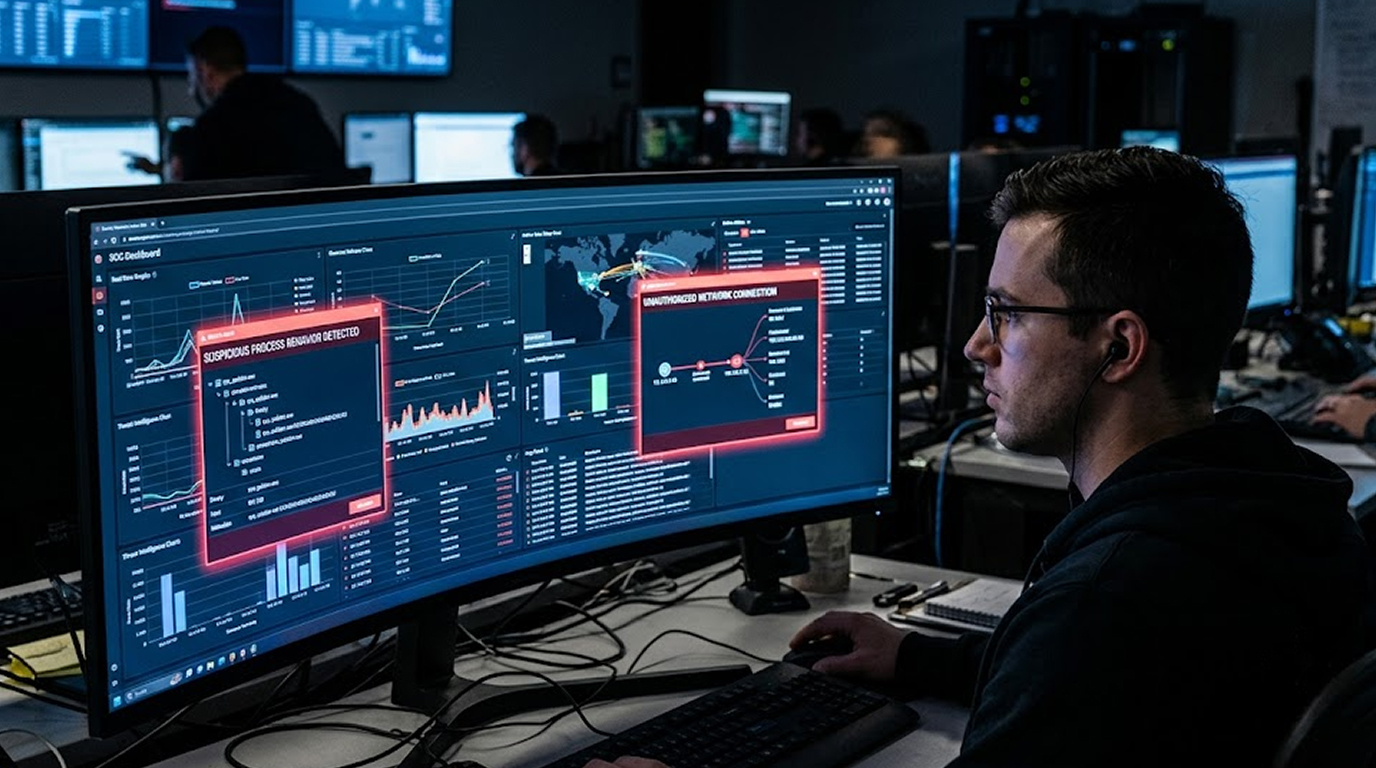
Behavioral detection takes a different approach. It does not care what the file is. It cares what the file does. If a process starts acting suspiciously encrypting files, communicating with unknown servers, or modifying system settings, behavioral tools flag it.
This is how you detect weird malware activity in real-time.
Why You Cannot Rely on Signatures
The traditional security model is broken. Attackers are using polymorphic malware, fileless attacks, and living-off-the-land techniques. They do not need to drop a file. They just use the tools already on your system.
Behavioral detection watches for patterns of activity, not specific files. This is the difference between a bouncer checking ID at the door and a CCTV camera watching what people actually do.
Behavioral Indicators
Process Abnormalities:
- Word processor starting PowerShell (not typical behavior)
- Web server running shell command (not typical behavior)
- Process started in temp directory (suspect behavior)
- Process with a randomly generated name (suspect behavior)
File Activity Anomalies:
- Mass file encryption or renaming (ransomware behavior)
- Accessing files the process has no business touching
- Deleting shadow copies or backups
Network Anomalies:
- Outbound connections to unknown IPs
- Beaconing to command-and-control servers
- Unusual protocols or ports
- User Behavior Anomalies:
- Logins at unusual hours
- Unusual data access patterns
- Privilege escalation attempts
Practical Tools for Behavioral Detection
Sysmon
What it is:
A Windows system service and device driver that logs system activity to the Windows event log.This is the most widely adopted behavioral logging tool.
What it detects:
Creation of process, network connection, modification of file creation time, loading of drivers, and many others.
Deployment of Sysmon:
# Sysmon installation
sysmon -accepteula -i sysmon-config.xml
Relevant Events:
- Event ID 1 - Process creation
- Event ID 3 - Network connection
- Event ID 11 - File creation
- Event ID 22 - DNS query
Practical Example:
An attacker runs PowerShell with the encoded command. Process creation gets logged via Sysmon with all the command line parameters.
The SIEM system is able to detect process creation by PowerShell running within non-admin process.
Microsoft Defender for Endpoint
What it is:
Built-in EDR solution which works with behavioral sensors for detecting anomalous behavior.
What it detects:
Behavior of processes, file activity, network connections, and user actions.
How do you use it:
It is included with Windows 10/11 Enterprise OS.
Key features:
- Automatic attack disruption
- Real-time behavioral monitoring
- Cloud-delivered protection
Practical Example:
The user opens an Office document containing malware. Defender identifies that the macro is running, tracks the process chain, and prevents the attack from encrypting the files.
Process Monitor (ProcMon)
Description:
This is a Sysinternals tool that enables one to detect all operations involving files, registry and processes/threads.
What does it detect:
All file accesses, all registry accesses and all process creations.
Usage:
- Open ProcMon
- Filter to eliminate noise
- Look for suspicious patterns
Practical Example:
You think that you have been infected with malware. Open ProcMon and filter according to process name. Look for any processes writing to unexpected locations or modifying registry run keys.
Wireshark
What does it do:
Protocol analyzer of networks that captures and analyzes network packets.
What does it identify:
Any abnormal activity with regard to network connections, DNS requests and data exfiltrations.
Usage Procedure:
- Capture packets of network traffic from affected interface.
- Filter out the traffic pattern.
Following filters can be used:
- dns – For DNS request detection.
- http.request – For HTTP requests detection.
- tcp.port==4444 – Reverse Shell Port.
Practical Example:
Your system in the network sends beaconing packets to an IP address every 60 seconds. Wireshark captures the packets and finds out the affected host.
YARA
What it is:
It is a pattern matching tool that analyzes malware through defined rules.
What it scans for:
Behavior patterns in the memory or file.
Instructions for Use:
- Develop YARA rules to identify certain behaviors
- Memory or file scanning
Example YARA Rule:
rule Suspicious_PowerShell {
    strings:
        $cmd = "Invoke-Expression" nocase
        $enc = "-EncodedCommand" nocase
    condition:
        $cmd or $enc
}
Practical Example:
You scan running processes for signs of malicious PowerShell activity. The rule catches an encoded command being executed.
Integrity checks
Tripwire / AIDE – Tools for integrity check of important system files. What is to be checked:
- System binaries (like C:\Windows\System32)
- Registry keys
- Configuration files
Practical Example:
Attacker modifies svchost.exe into a malicious one. Tripwire notices the change and triggers an alert.
Creating a Baseline
You cannot detect anomalies without knowing what normal looks like. Identify the baseline of your environment.
What should be monitored:
- Process listings that are typical for each host
- Network activities that are usual
- User behaviors that are standard
- File system modifications
How to maintain it:
- Ongoing monitoring for any modifications
- The updating of the baseline upon adding new applications
- Exceptions tracking
Practical Scenario 1: Ransomware Detection
Attack:
User clicks on the phishing link and the malware is downloaded and executed. The encryption starts on the files.
Detection by using behavior based approach:
Step 1: The Sysmon creates an event for the detection of the creation of a new process which begins from %TEMP%.
Step 2: New process alters the files. Sysmon fires file creations (Event ID 11) events irregularly.
Step 3: Process attempts to delete the shadow copies. Such action is fired by Windows.
Step 4: Defender for Endpoint detects all the aforementioned actions, which are signs of ransomware.
Step 5: Security team isolates the host.
Practical Scenario 2: Detecting a Reverse Shell
The attack:
An attacker exploits a vulnerability in a web application. The attacker then uploads a web shell and sets up a reverse shell connection.
Behavioral tools identification:
Step 1: Process (web server) begins launching cmd.exe (Event ID 1). It is unusual behavior for a web server.
Step 2: ProcMon reveals that the new process writes to C:\Windows\Temp folder. This is suspicious because a web server is not supposed to write anything to the Temp folder.
Step 3: When using netstat, one can see that an existing connection has been made by a web server to an IP address, which is suspect (Event ID 3).
Step 4: Traffic created due to the reverse shell is captured using Wireshark and shown to be identical to the traffic of a reverse shell.
Step 5: It is observed that the security team has detected that the server has been compromised and has closed the connection.
Practical Scenario 3: Detection of Credential Dumping Attack
The attack:
The attacker uses the privilege of local admin to use mimikatz to dump the credentials from memory.
Behavioral detection technique to detect the attack:
Step 1: Event 1 detects the creation of process mimikatz.exe from the location C:\Users\Public. It is an unusual operation.
Step 2: The process tries to read the memory of lsass.exe. This step is detected when windows creates an event of a suspicious attempt of access (event type 4656).
Step 3: The process reads from %WINDIR%\System32\config\SAM. It is not normal.
Step 4: The Defender for endpoint detects the credential dumping operation.
Step 5: Security team isolates the system and reset all the credentials.
Practical Scenario 4: Detecting a Fileless Malware Attack
The attack:
The attacker runs a malicious PowerShell script that runs completely in memory and never touches the disk.
How behavioral detection techniques detect this:
Step 1: Event ID 1 demonstrates the powershell.exe running an encoded command line.
Step 2: This encoded command line is decoded by your SIEM or YARA rule, and this reveals malicious payload.
Step 3: Communication starts through the network via the process that has a strange IP address (Event ID 3).
Step 4: This process uses another payload with the use of the command "Invoke-WebRequest" (Event ID 22).
Step 5: The fileless malware attack is detected and reported by the Defender for Endpoint.
Step 6: Security operations terminate the process and block the IP address.
The Bottom Line
Signatures are dead. Attackers are too fast, too polymorphic, and too clever. The only way to catch modern malware is to watch what it does, not what it looks like.
Behavioral tools are your eyes and ears. Sysmon, Defender, ProcMon, Wireshark, and YARA are the practical tools you need.
Start with a baseline. Monitor for anomalies. Alert on suspicious patterns. Isolate and investigate.
The malware is already moving. You just need to see it.
FAQ Section
What is the difference between signature detection and behavior detection?
Signature detection detects known signatures or hashes in the files. Behavior detection looks for unusual behaviors, such as extensive encryption of files and unknown network connections.
What is the best free tool for behavior detection?
Sysmon is the best free tool. It is fast, efficient, and tightly integrates with the Windows event log. You need a SIEM to collect and analyze the logs.
How do I deploy behavioral detection on a budget?
Start with Sysmon + Windows Event Forwarding + a free SIEM like Wazuh. This will give you the ability to leverage EDR features without any cost.
What are the important Sysmon event IDs that need to be monitored?
Sysmon Event ID’s: 1 (Process creation), 3 (Network Connection), 11 (File creation), and 22 (DNS query).
How do I create a baseline for my environment?
Watch out on your system over two weeks and document the process list, network connection, and activity that occur during normal operations.