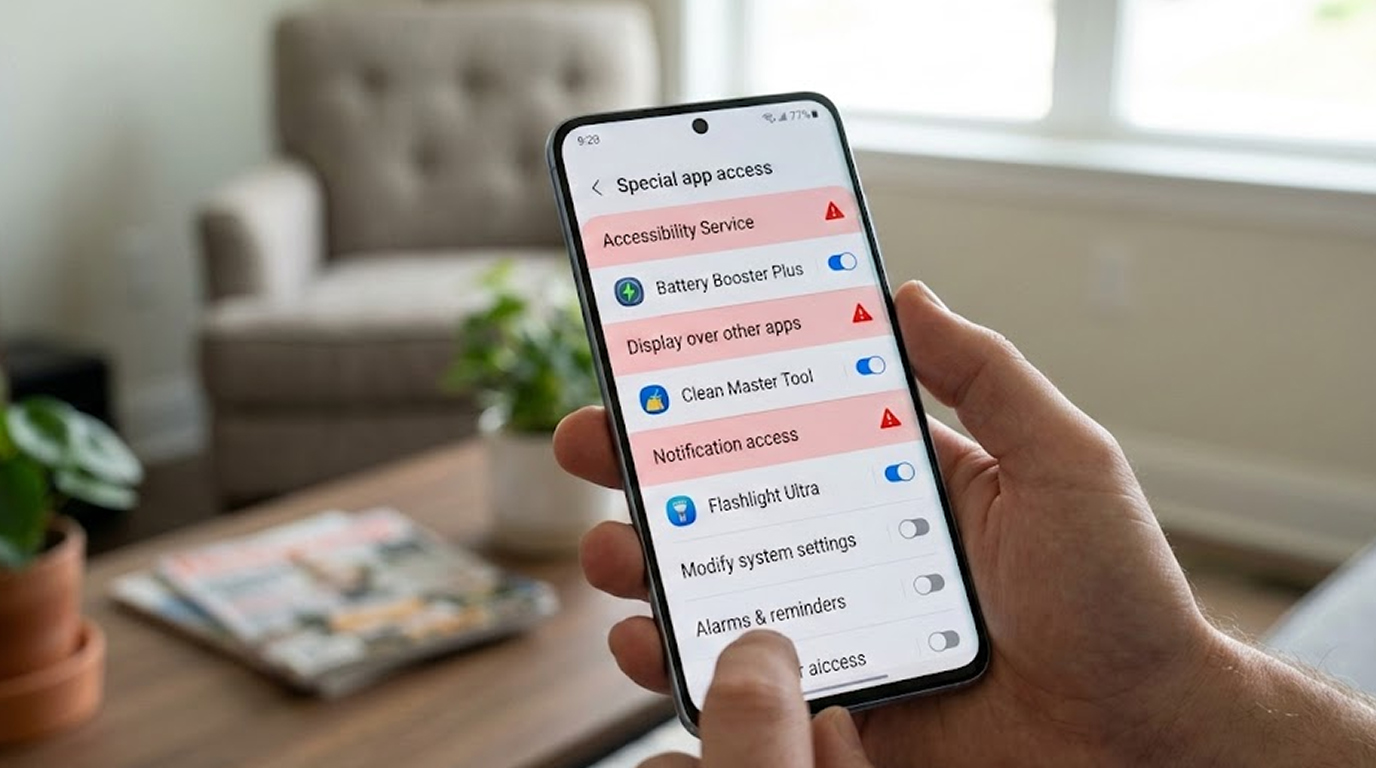
If you just installed an app and now suspect it’s fake (wrong developer name, suspicious reviews, came from a random link, asking weird questions), don’t just uninstall, first revoke these three permissions that give the app the most dangerous control over your phone.
The moment you spot red flags, go to Settings → Apps → [suspect app name] → Permissions (or Special app access) and turn these off before you delete the app.
1. Accessibility Service (The Most Dangerous One)
What it really lets the app do
1. Read everything on your screen (banking apps, crypto wallets, messages, 2FA codes)
2. Simulate taps and swipes (click “Approve” on your behalf, fill phishing forms)
3. Intercept notifications (steal SMS codes, read email previews)
4. Control other apps (open Settings, disable Play Protect, install more malware silently)
Why fake apps ask for it They claim it’s needed for “screen reading”, “AI filters”, “auto-click”, “battery optimization”, “gesture controls”, all lies. Real accessibility tools are almost never required for a normal wallet, trading app, filter or game.
Action Settings → Accessibility → Downloaded services → find the app → toggle it off. If it refuses to turn off → force-stop the app first, then revoke.
2. The permissions that an app is granted to show over (on top of) other apps, draw over, or display on top of other apps allow an application to:
1. Create fake login screens over real banking/wallet/exchange apps.
2. Create invisible overlays that record taps on real apps.
3. Fake system dialogs (“Update required”, “Security warning”)
4. Cover the real Play Store warning so you don’t see “Harmful app detected”
Why fake apps ask for it They say it’s for “floating windows”, “chat bubbles”, “screen filters”, “video playback controls”, common excuses.
Action Settings → Apps → Special app access → Display over other apps → find the app → toggle off.
3. Notification Access / Notification Listener
What it really lets the app do
1. Read every incoming notification (banking alerts, 2FA codes, email previews, crypto transaction confirmations)
2. Hide or modify notifications so you don’t see real security warnings
3. Log all app activity via notifications
Why fake apps ask for it They claim it’s for “notification management”, “AI summaries”, “do-not-disturb modes”, rarely legitimate for a wallet or filter app.
Action Settings → Apps → Special app access → Notification access → find the app → toggle off.
Quick 30-Second Emergency Revoke Order
1. Accessibility → off first (highest risk)
2. Display over other apps → off
3. Notification access → off
4. Then force-stop the app → uninstall
Extra Checks While You’re There
1. Clipboard access (Settings → Apps → Special app access → Clipboard access) → revoke if listed
2. Usage access / Usage stats (same menu) → revoke
3. Any SMS / Phone permissions → revoke immediately
These three permissions (Accessibility, Overlay/Draw over, Notification Listener) are the holy trinity for Android malware, especially wallet clippers, banking trojans, and spyware. Revoking them first severely cripples the app before you uninstall, giving you a much better chance of limiting damage.
If the app fights back (crashes when you try to revoke, or re-enables permissions) → put the phone in airplane mode, boot to safe mode if possible, and scan with Malwarebytes or Bitdefender before wiping.
One wrong permission grant + one copy-paste = thousands gone. Revoke first, uninstall second, regret never.