Email headers are the behind the scenes information that are associated with every email. Think of them as "envelopes" and "stamps" on physical letters. Email headers show you how the email traveled from the sender to the receiver.
Specifically, email headers show the path taken (the complete path), all the IP addresses associated with the email, what timestamps were used, what server names were used, and other authentication information associated with the email.
When doing an investigation into a scam, email headers are generally the proverbial "smoking gun" because:
1. The true origin IP of an email (where the email actually came from)
2. Spoofing attempts (sending the email from a fake name/fake address)
3. Routing anomalies (e.g., successfully routing an email claiming to be from a bank when the email actually routed through a foreign server)
4. Timestamps of an email do not match the "story" (sending an email out as "urgent" at 3 a.m. from another time zone.)
For most users, checking their headers is an easy way to see if they're being targeted with phishing scams, business email compromise (BEC) schemes, lottery scams, or invoice fraud before clicking links or replying to the phishing or scam email.
Email headers can be used to trace back scams to the attackers' infrastructure, to identify patterns of attackers committing similar scams against multiple victims, as well as to lead to the takedown of the attacker or even their arrest.
Viewing the Headers of an Email
You will probably find that many email readers hide headers by default, but it is simple enough to see them.
1. Gmail (Web/Mobile) Click on your email, and click the three dots (More). Click Show Original and the complete header will appear, along with the received lines showing the route the email took.
2. Outlook (Web/Desktop) Click on your email and choose File → Properties (desktop) or View Message Source (web). You will see the headers in a popup window.
3. Yahoo Mail Open email → click More → View Raw Message.
4. Thunderbird Open email → View → Message Source.
5. iOS Mail Open email → tap sender name → Details → headers expand.
6. Android Gmail App Open email → three dots → Show Original.
Once viewed, focus on:
1. Received: lines (trace the path backward from your server to sender)
2. From: vs Return-Path: / Reply-To: (mismatches indicate spoofing)
3. X-Originating-IP: or X-Sender-IP: (real sender location)
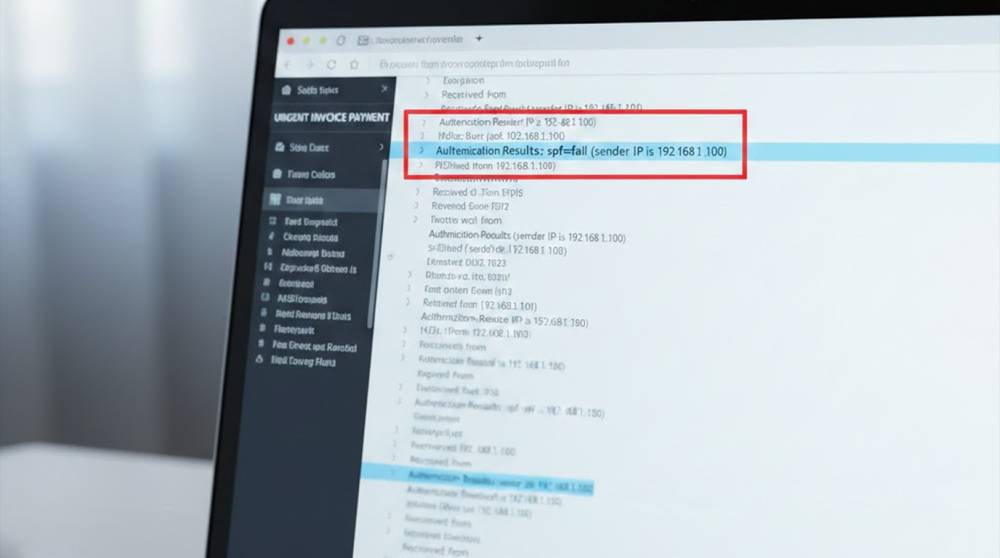
4. Authentication-Results: (DKIM/SPF/DMARC pass/fail)
Practical Tools for Header Analysis
1. MxToolbox (Free Online Tool) Paste Email Header → Analyze SPF/DKIM/DMARC + Tracing IP Address + Checking On Blacklists. To Use: Visit mxtoolbox.com → Click “Email Headers" → Paste Header → Hit Analyze.
2. MessageHeader (Google’s Free Tool) Paste Email Header → Receive Visual Timeline Of Delivery Path, IP Geolocation + Authentication Results. To Use: Go To toolbox.googleapps.com/apps/messageheader/analyzeheader → Paste Email Header→Click Submit.
3. IPVoid (Free IP Tracking Tool) Extracts IP Address From Email Header→ Enter Into ipvoid.com → Provides Location Of IP Address, Name Of ISP, And Reports Of Abuse Of IP Address.
4. CyberChef (Offline/Online - Free) Decodes Base64/Url Encoded Strings Within Email Headers. To Use: Go To gchq.github.io/CyberChef → Drag “From Base64” Recipe → Paste Encoded String.
Real Scenarios and Examples
Scenario 1: Tracking a BEC Scam (Business Email Compromise)- A small firm received an email from the “CEO” requesting an urgent wire transfer. Examining the header of the email showed:
1. From: ceo@company.com
2. However the Received: lines showed that the original IP address was from Nigeria (not the address where the CEO was located).
3. SPF=Fail (The sender's domain does not match what is in the IP address).
4. Reply-To: ceo@compani.com (typo in domain).
Methods to track:
1. Copy the IP address from the headers (for example 197.210.52.1) and paste it into IPVoid to find out more information about where it came from. This shows that it is an IP address that belongs to an ISP located in Nigeria, and this ISP is known for sending spam messages.
2. Outcome: The scam was stopped before any money was lost and reported to the bank and to the FBI (IC3). This scam was found to be part of a larger scheme involving other scams that were traced to a West African crime ring.
Scenario 2: Phishing Lottery Scam Exposed- Email claimed “you have won $1,000,000 – click here to claim your winnings”. The headers of this email showed:
1. The email went through many free email websites (ex. Gmail to Yahoo to Hotmail).
2. The X-Originating-IP address showed it originated from a VPN server located in Russia.
3. The time the email was “sent” was 4 AM for the victim; the headers showed the time the email was received was at 11 AM for the sender (two different time zones).
Methods:
1. Use MXToolbox to analyze headers; results showed that the DKIM signature failed and the IP address has been blacklisted on Spamhaus.
2. Outcome: Victim reported incident to law enforcement; this scam has been linked to a Russian-based crime group that uses automated email to send these types of emails naturally.
Scenario 3: Campaign of fraud using a fake invoice email from 'suppliers' by spoofing email headers:
1. Spoofed From: supplier@realcompany.com
2. But Return-Path: fraud@randomdomain.ru
3. Authentication Results: SPF SoftFail
Practical Evidence
1. Google MessageHeader tool; visual map; shows path through Bulgaria proxy server
2. Result: traced back to Eastern Europe organized crime - saved $15,000 from fraudulent payment.
Key Takeaways
Email headers are your free, built-in scam detector, they cut through the lies and show the real path. Always check them for urgent/money-related emails. One quick header view can save thousands. Tools like MxToolbox and MessageHeader make it even easier, no expertise needed.