Overlay attacks (also called screen overlay attacks, draw-over attacks or Accessibility phishing) remain one of the most effective ways Android malware steals credentials, 2FA codes, crypto addresses and banking details in 2025 - 2026.
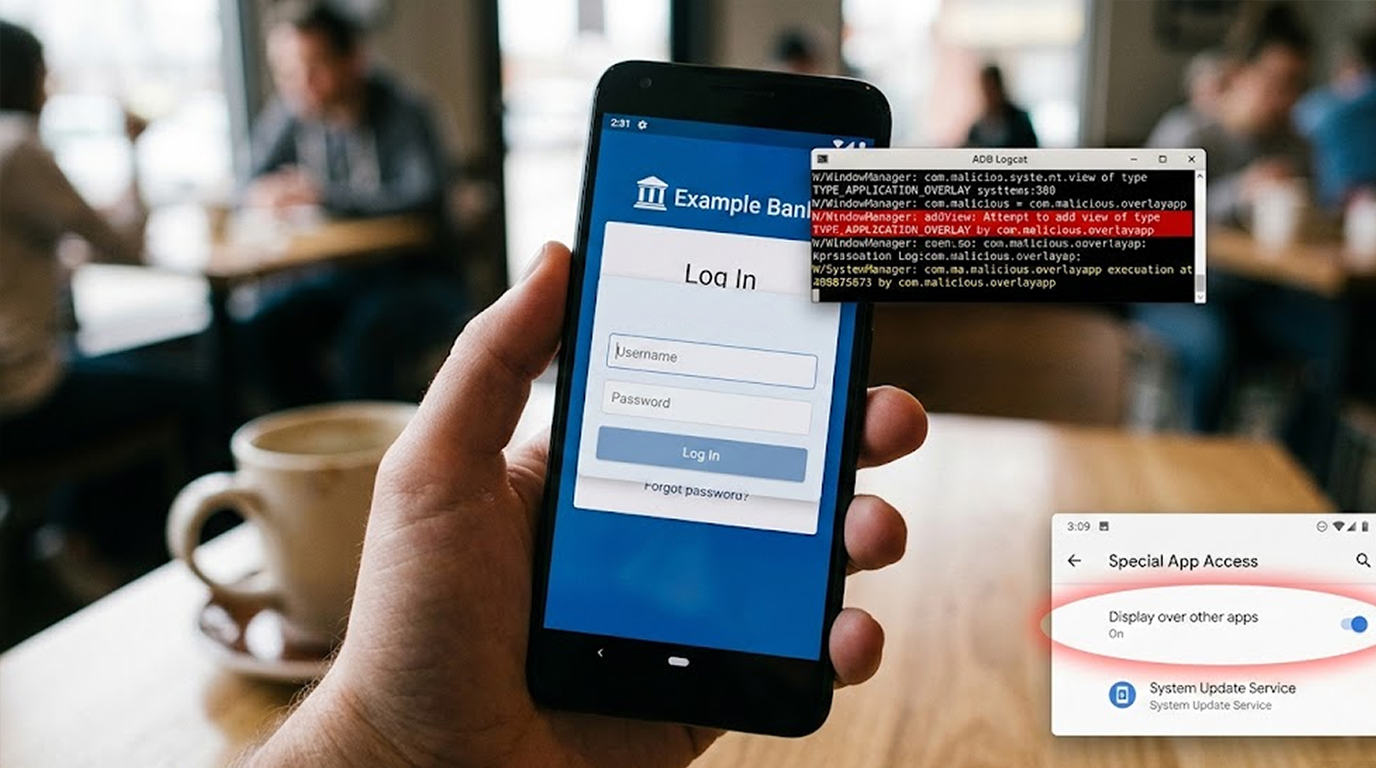
The core technique is very simple: The malicious app asks for the “Display over other apps” permission (SYSTEM_ALERT_WINDOW) → draws a fake login screen exactly on top of the real banking / wallet / exchange app → user enters credentials into the fake overlay → malware captures them.
Most users never notice because the overlay can be pixel-perfect and only appears for a few seconds.
Why Logging Overlay Creation Events Is One of the Strongest Defenses
Android does not (by default) log when an app creates an overlay window. But you can force it to log these events and the moment you see an unexpected app drawing over a sensitive screen (banking, crypto wallet, Settings), you know something is wrong.
Here are the most practical ways people actually monitor and detect overlay activity right now.
1. Use ADB + Logcat (Fastest for One Device – No Root Needed)
Connect phone via USB → enable USB debugging → run:
adb logcat | grep -i "WindowManager\|addView\|SYSTEM_ALERT_WINDOW\|overlay"
What you actually see when an overlay is created:
WindowManager: Adding window Window{abcdef u0 com.malicious.app/com.malicious.OverlayActivity} type=TYPE_APPLICATION_OVERLAY
or
addView: package=com.malicious.app callingUid=10345 type=SYSTEM_ALERT_WINDOW
Practical tip Filter even tighter:
adb logcat | grep -E "addView.*TYPE_APPLICATION_OVERLAY|SYSTEM_ALERT_WINDOW"
→ Leave this running in a terminal while you use banking / wallet apps → any unexpected line = immediate red flag.
2. Enable Developer Options → Show Touches + Pointer Location
Developer Options → turn on:
1. Show touches (white dot appears wherever screen is touched)
2. Pointer location (crosshair + coordinates appear)
What you see during overlay attack
1. Fake login screen appears → touches register on the overlay, not on the real app underneath
2. Pointer location shows coordinates that don’t match expected UI elements
Very low-tech but catches many overlays because the user suddenly can’t interact with the real app.
3. You can use Firewall + Logging (NetGuard or AFWall+)
Both log which apps are trying to create overlays by indirectly monitoring window system calls or abusing accessibility.
1. LogNetGuard (Free version)
Enable logging and look for apps using a connection immediately after they receive their permission for accessibility or to create overlays.
2. LogAFWall+(Root required)
Logs Iptables logs. Some overlay attacks cause the suspect to use unusual network log records.
4. Tasker + Secure Settings Plugin (Send a custom alert)
To be proactive with alerting:
1. Use your Tasker profile Event → System → Display → Display State has been changed
2. Use AutoTools Secure Setting Plug
3. When an app receives permission to display overlays from a non-preapproved app, send notifications / sounds / vibrations.
5. EDR / Antivirus with Overlay Monitoring
The following free/freemium security/personal tools are designed to positively identify overlay creation and report detection in 2026.
1. Malwarebytes Mobile (Free tier) , This application alerts users to suspicious Accessibility and overlay approval combinations.
2. Bitdefender Mobile Security (Free after trial), This application has an Anomaly Detection feature that alerts users to overlay abuse.
3. Avast Mobile Security (free) , “App Insights” flags apps that combine Accessibility + Draw over
4. Hypatia (open-source scanner) , signature-based detection of known clippers that use overlays
Quick Practical Checklist When You Suspect an Overlay
1. Press Recent Apps button → swipe away the top app → if fake login screen stays → it’s an overlay
2. Press the power and volume down buttons together in order to take a screenshot of the fake screen. This will allow you to check to see that the screenshot shows the fake screen as an overlay.
3. Go to Settings > Apps > Special App Access > Display Over Other Apps to see a list of apps that have permission to do this. You can revoke this permission for any apps that you do not consider trustworthy.
4. Settings → Accessibility → Downloaded services → look for anything you didn’t grant → disable immediately
5. If you can’t get to Settings → reboot to safe mode (hold Power → long-press Restart → Safe mode) → malware can’t draw overlays in safe mode
Overlay attacks succeed because users grant Accessibility / Draw-over permissions without thinking twice. Once granted, the malware can impersonate any app perfectly.
The fastest way to catch them is logging + visual awareness:
1. Keep logcat running during sensitive operations (or use an EDR that does it for you)
2. Always ask: “Why does this calculator / filter / battery saver need Accessibility?”
If the answer is “it doesn’t” → revoke and uninstall.
One revoked permission can stop a $10,000 loss in seconds.